 Mattermost v11.0 is now available! Learn what's new »


Connect Microsoft 365, Teams, and Outlook with Mattermost
 Available on Entry, Enterprise, and Enterprise Advanced plans (not available on Professional)
Mattermost Mission Collaboration for Microsoft extends Microsoft for mission-critical coordination, command and control, incident response, and DevSecOps workflows in demanding environments, including air-gapped and classified networks by embedding Mattermost inside Teams. Use data-sovereign tools like secure chat, Playbooks, and Calls directly within M365, Teams, and Outlook.
This app is designed to work with Microsoft 365, Teams, and Outlook and is currently in Beta. From Mattermost v10.7.1, this integration supports Entra ID-based Single Sign-On (SSO) for automatic authentication. Users must exist in both Mattermost and Microsoft with matching email addresses; the integration handles authentication but does not automatically provision new users. See the user provisioning product documentation for details on setting up SSO.
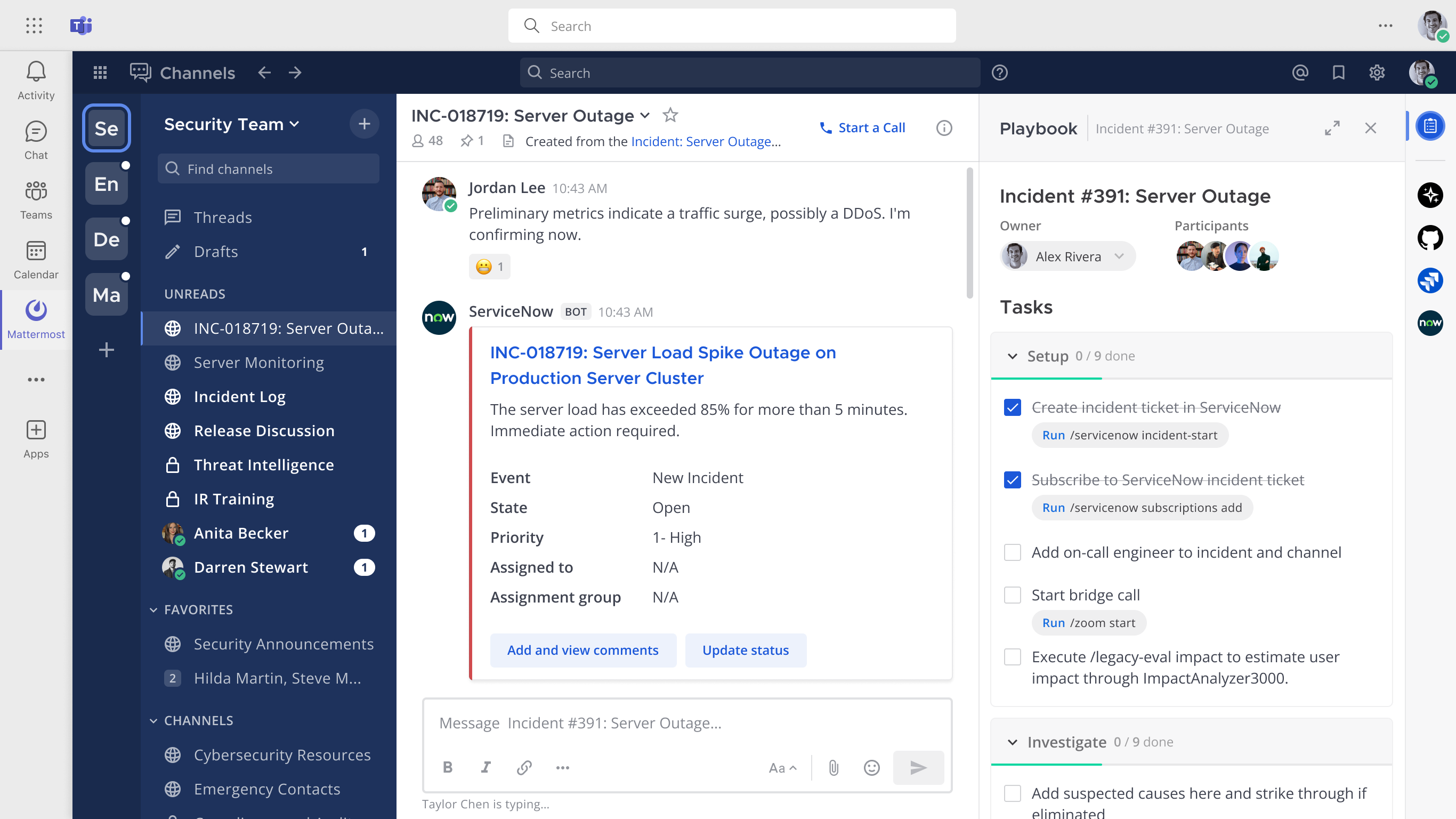
Deploy
Before starting the setup, review this section to familiarize yourself with the 3 components needed to integrate Mattermost with M365, including Azure App registration, Microsoft Teams App installation, and Mattermost plugin configuration. Each component plays a crucial role in ensuring seamless communication and collaboration between Mattermost and Microsoft 365 services. Then complete the following integration setup steps in the order listed below.
Register an MS Teams app in Azure
An application must be registered in Microsoft Azure to enable secure authentication and authorization between Mattermost and M365 services. This app registration acts as the bridge for permissions and connectivity. The Azure App is responsible for authentication and managing permissions.
Sign in to the Azure portal using an admin Azure account.
Go to your Azure Portal > Microsoft Entra ID.
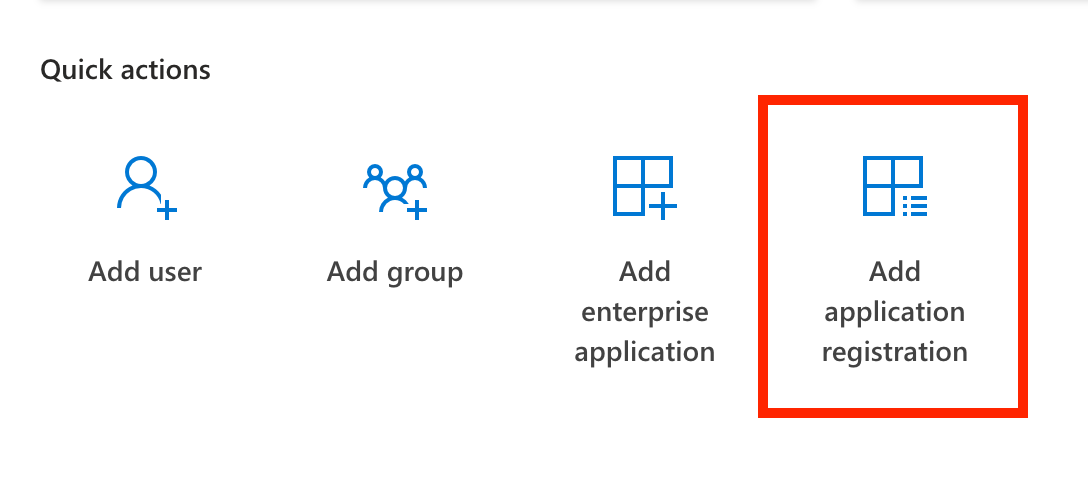
Create a new app registration by selecting the Add application registration “Quick Action”:
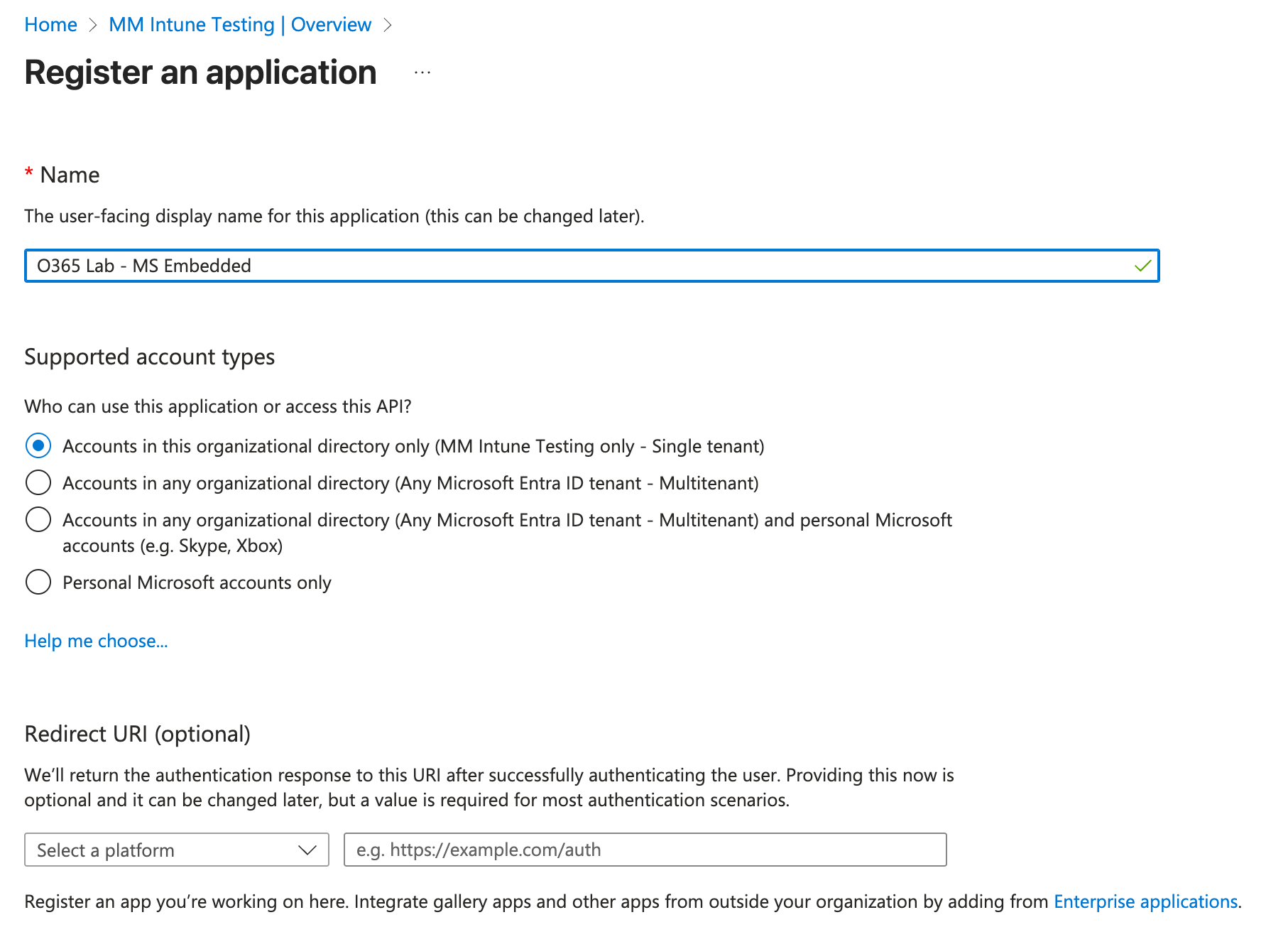
Give it a name.
Choose the “Accounts in this organizational directory only (single tenant)” option.
Leave the Redirect URI empty.
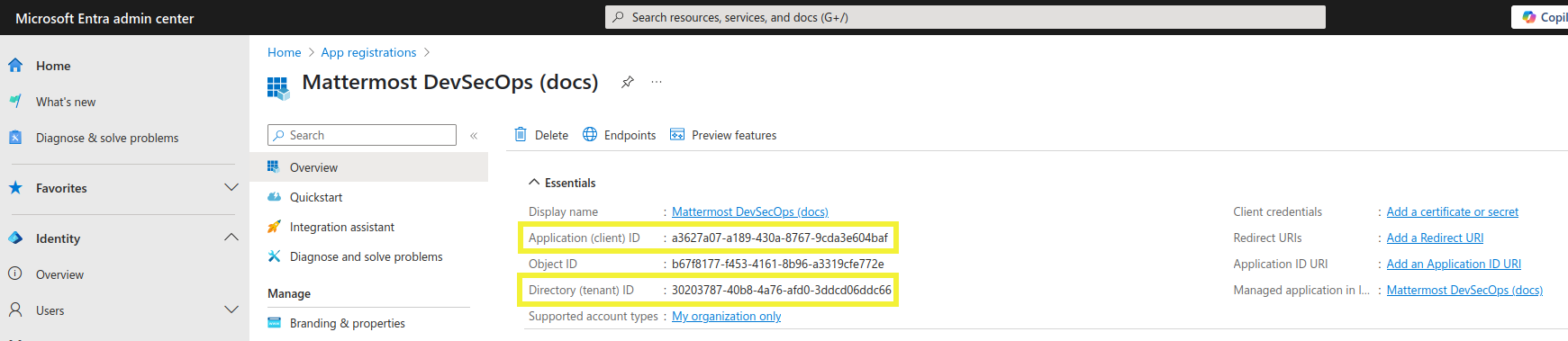
Go to your newly created application and copy the Application (client) ID and Directory (tenant) ID values. You’ll need those later to configure the plugin.
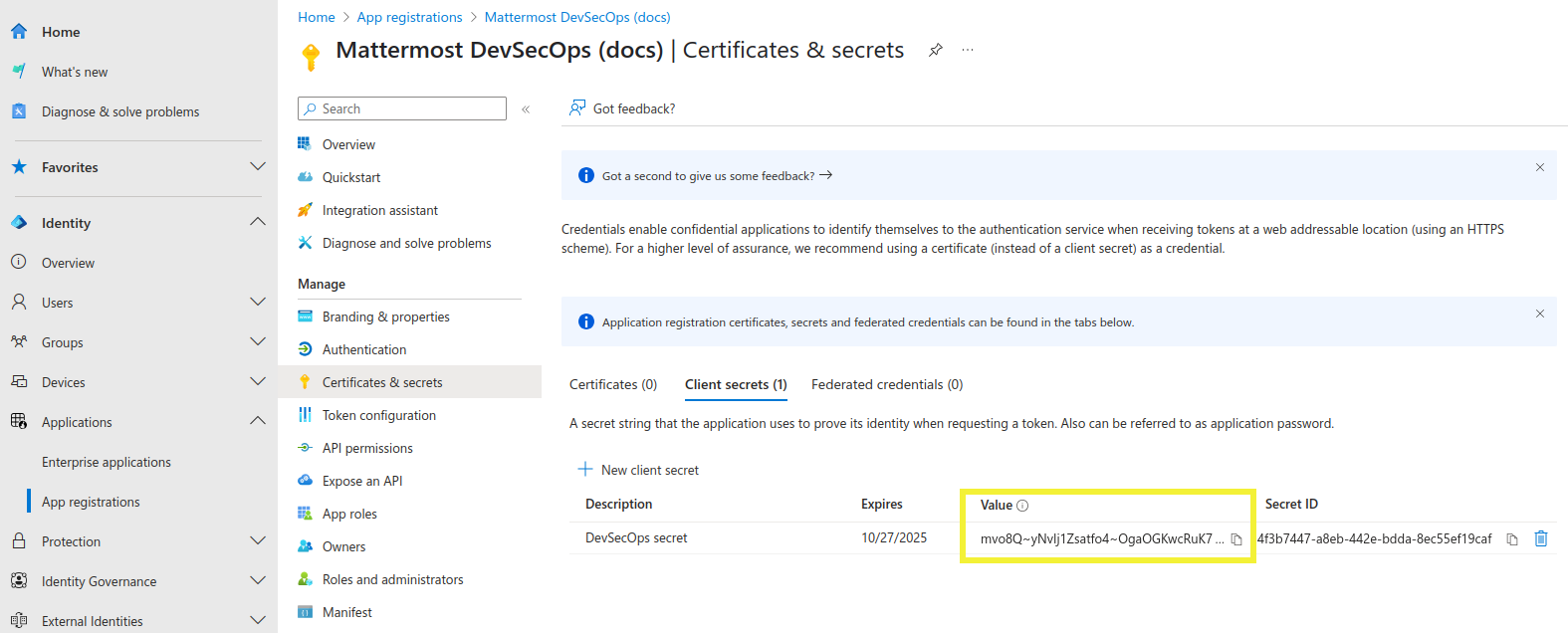
Go to Certificates and secrets to generate a new client secret. Make a copy of the secret value, as it will only be shown once. You’ll need this value to configure the plugin.
Go to API Permissions to complete the following steps:
Ensure the
User.Readdelegated permission is added. See the Microsoft SSO documentation for details.Add the Microsoft Graph API
TeamsActivity.Sendapplication permission for notifications. See the Microsoft notifications documentation for details.Add the Microsoft Graph API
AppCatalog.Read.Allapplication permission for notifications. See the Microsoft List teamsApp documentation for details.Grant admin consent for the default directory to prevent users from seeing the consent prompt.
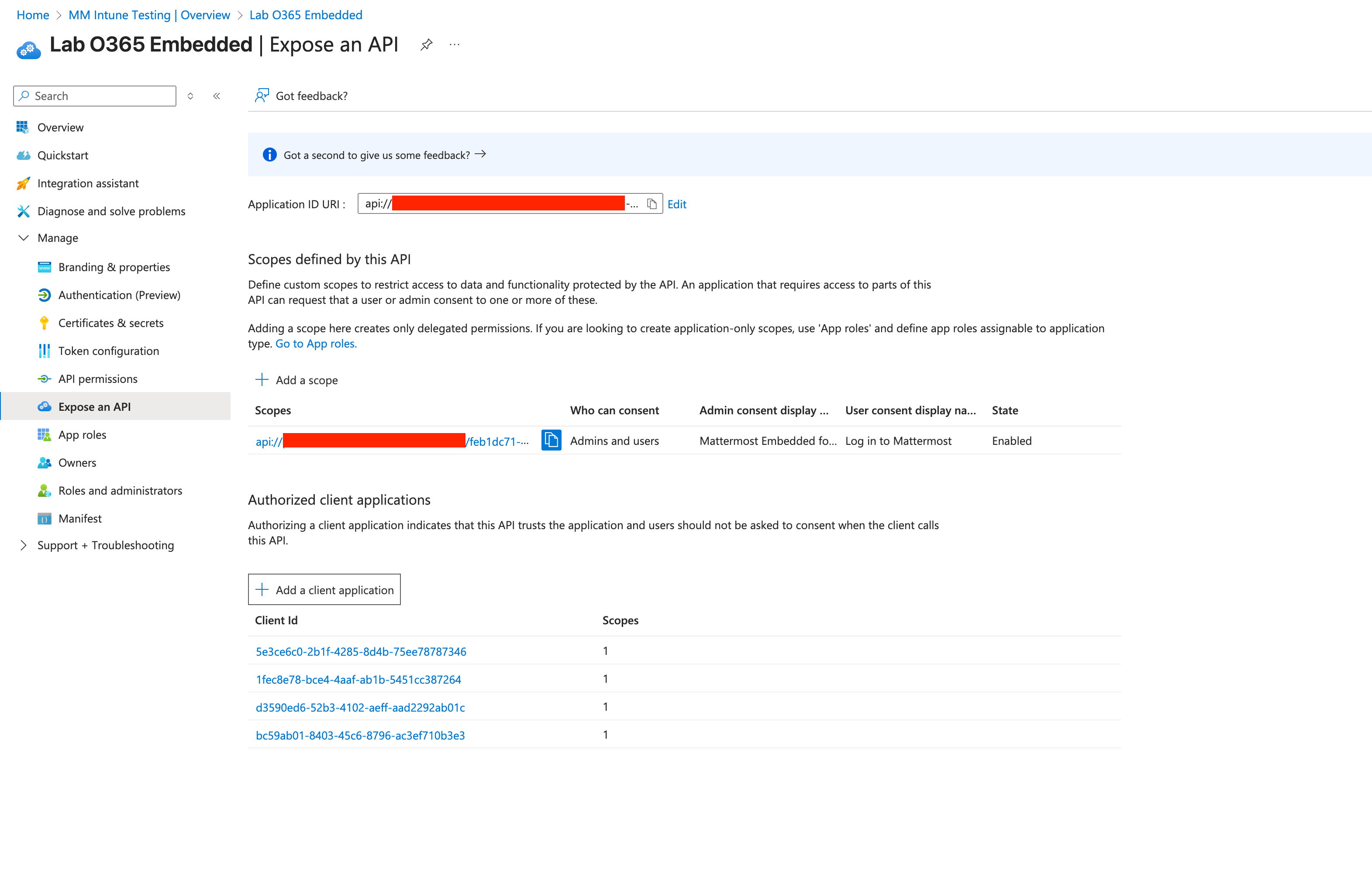
Go to Expose an API to complete the following steps:
Add/edit a Application ID URI and set the value to
api://{{Mattermost Site URL Hostname}}/{{Application (client) ID}}.Add the
access_as_userscope by selecting Add a scope and setting the following values:
Scope name:
access_as_user.Who can consent? Admins and users
Provide a display name and description, as well as a user consent display name and description. These will be shown to end users on the consent screen. For example:
Display name: Log in to Mattermost
Description: Used to allow O365 users to log in to the Mattermost application
User consent display name: Log in to Mattermost
User consent description: This permission is required to automatically log you in into Mattermost from Microsoft applications.
See the Microsoft API scope documentation for details.
Add authorised client applications for the scope. See the Microsoft authorized client documentation for details.
Select
_Add a client application_. You must add a client application for each target Microsoft application:
Authorised scopes: The one we just created
Client ID:
Teams web: 5e3ce6c0-2b1f-4285-8d4b-75ee78787346
Teams app: 1fec8e78-bce4-4aaf-ab1b-5451cc387264
Outlook desktop : d3590ed6-52b3-4102-aeff-aad2292ab01c
Outlook web : bc59ab01-8403-45c6-8796-ac3ef710b3e3
If you want to make your application available in more Microsoft applications, keep adding client applications from the following table.
Configure the Mattermost plugin
A Microsoft Teams app is installed into Microsoft Teams. This app facilitates collaboration between Mattermost and Teams, providing a tab containing Mattermost within the Teams client. The Teams App is installed within Microsoft Teams to enable collaboration via a tab.
Download the latest release of the plugin.
Go to System Console > Plugins > Plugin Management > Upload Plugin, and upload the plugin binary you downloaded in the previous step.
Go to System Console > Plugins > Plugin Management. In the Installed Plugins section, scroll to Mattermost Mission Collaboration for Microsoft.
Enter an Application Version. You can start with
1.0.0.Generate an Application ID in version 4 UUID format and enter it in the Application ID field.
Enter the values you noted earlier in the appropriate fields, including Directory (tenant) ID, Application (client) ID, and Client Secret.
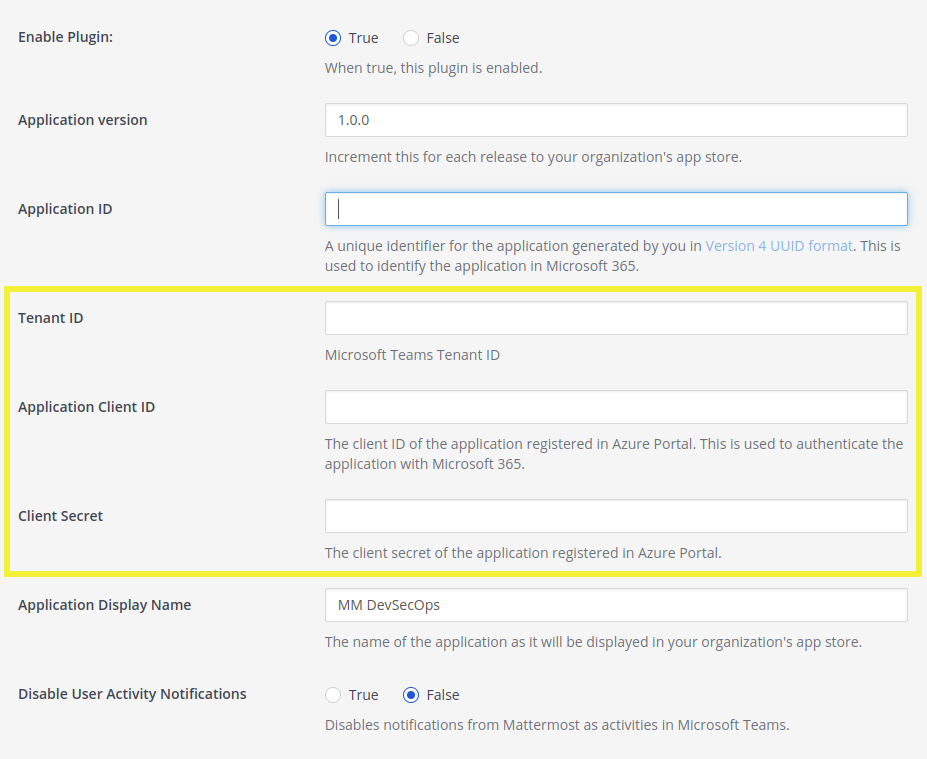
Enter an Application Display Name to define how your application is named in the MS Teams App Store. Make it company specific for easy discovery.
Save the changes and enable the plugin.
Select the Download Manifest button to generate the MS Teams application as a ZIP file, containing the app manifest. Save this file as it will be used in the next steps.
Install Mattermost in Microsoft Teams
Within Mattermost, the Mattermost Mission Collaboration for Microsoft plugin needs to be installed and configured. This plugin acts as the integration hub on the Mattermost side, connecting to both the Azure App and the Teams App. The Mattermost Plugin is the configuration point within Mattermost that unifies the integration.
Go to the Microsoft Teams admin center.
Go to Teams apps > Manage apps.
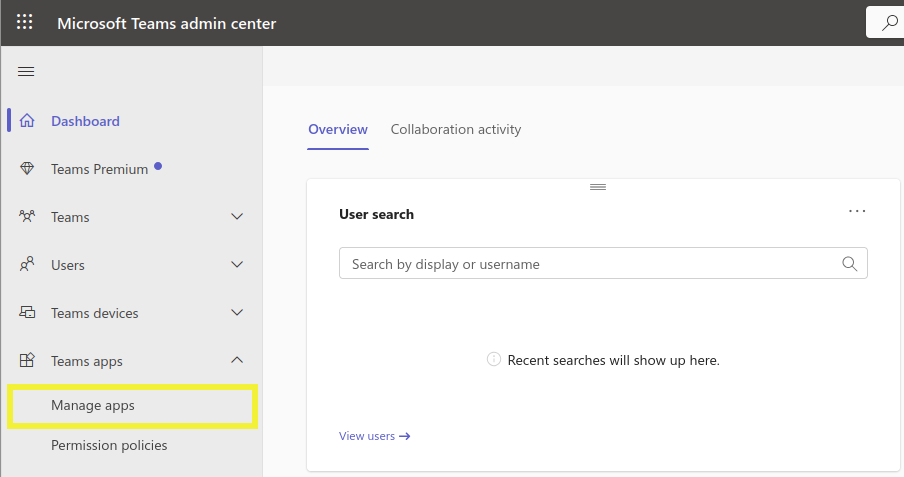
Go to Actions > Upload new app located in the upper-right corner of the Manage apps page.
Select Upload and select the ZIP file saved previously.
Done! Your application is now available to users.
Use
Add the app
Once the application is deployed, your users can add the Mattermost app to their Microsoft Teams environment. Inform your users to:
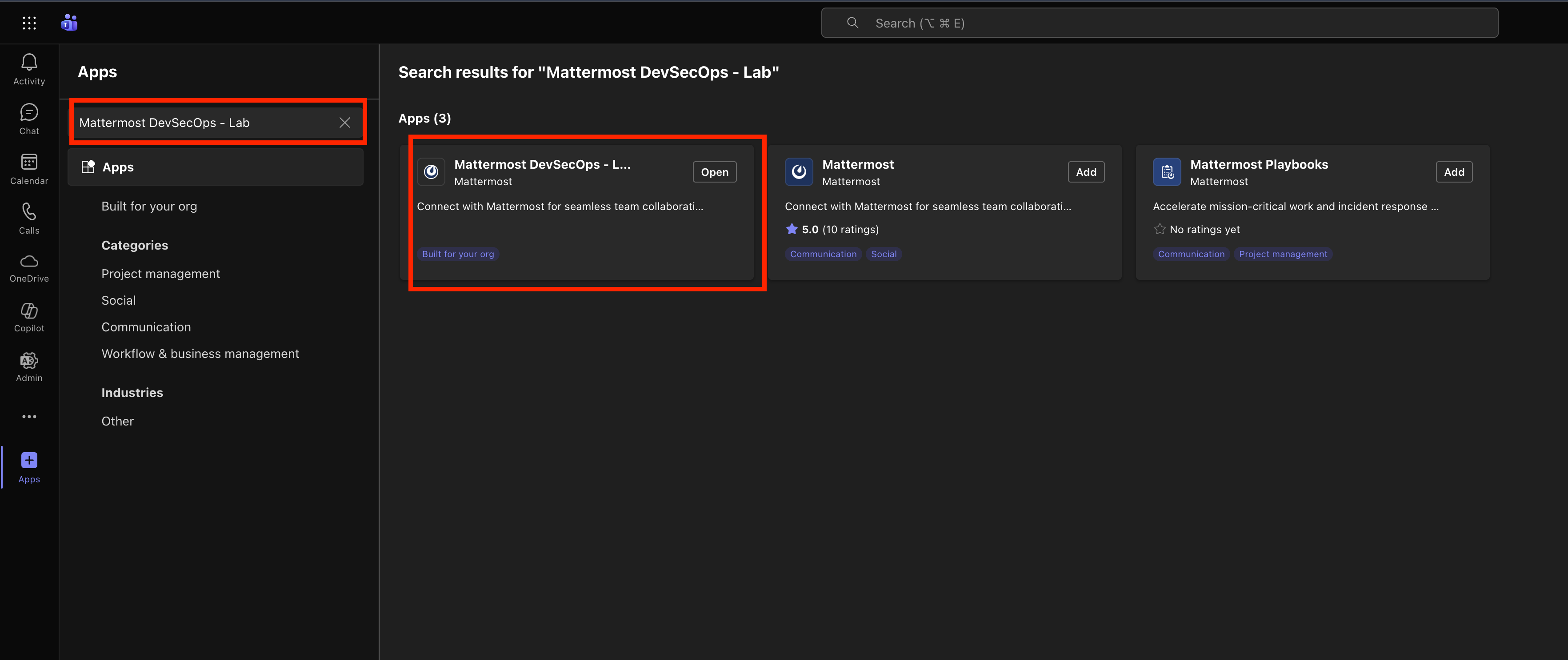
Open Microsoft Teams and go to Apps in the left sidebar.
Search for the Application Display Name you configured in the plugin settings (step 7 of the Configure the Mattermost plugin section).
The app will display a Built for your org tag, indicating it’s a custom application approved for your organization.
Select the app and then select Add to install it in their Teams environment.
Once added, users can access Mattermost directly within Microsoft Teams through the app tab.
Authentication
This plugin supports automatic authentication when logged into Microsoft Teams. Teams authentication automatically logs users into Mattermost if the email addresses in both platforms match exactly. Regular authentication methods (LDAP, SAML, email/password, OpenID) can additionally be used for Mattermost.
The integration automatically configures Content Security Policy (CSP) and Frame Ancestors settings to ensure secure embedding of Mattermost within Microsoft Teams, Outlook, and other Microsoft 365 applications. Deep linking is supported, allowing users to select links in Teams notifications and navigate directly to specific Mattermost posts or conversations.
In air-gapped environments or during business continuity disruptions, users who can’t join Microsoft Teams, can continue to access Mattermost using their Mattermost credentials by opening Mattermost in a separate app (e.g., in a new browser window). Alternatively, a Mattermost admin can pre-distribute the Mattermost desktop app using Windows MSI or the mobile app via EMM.
Activity Feed notifications
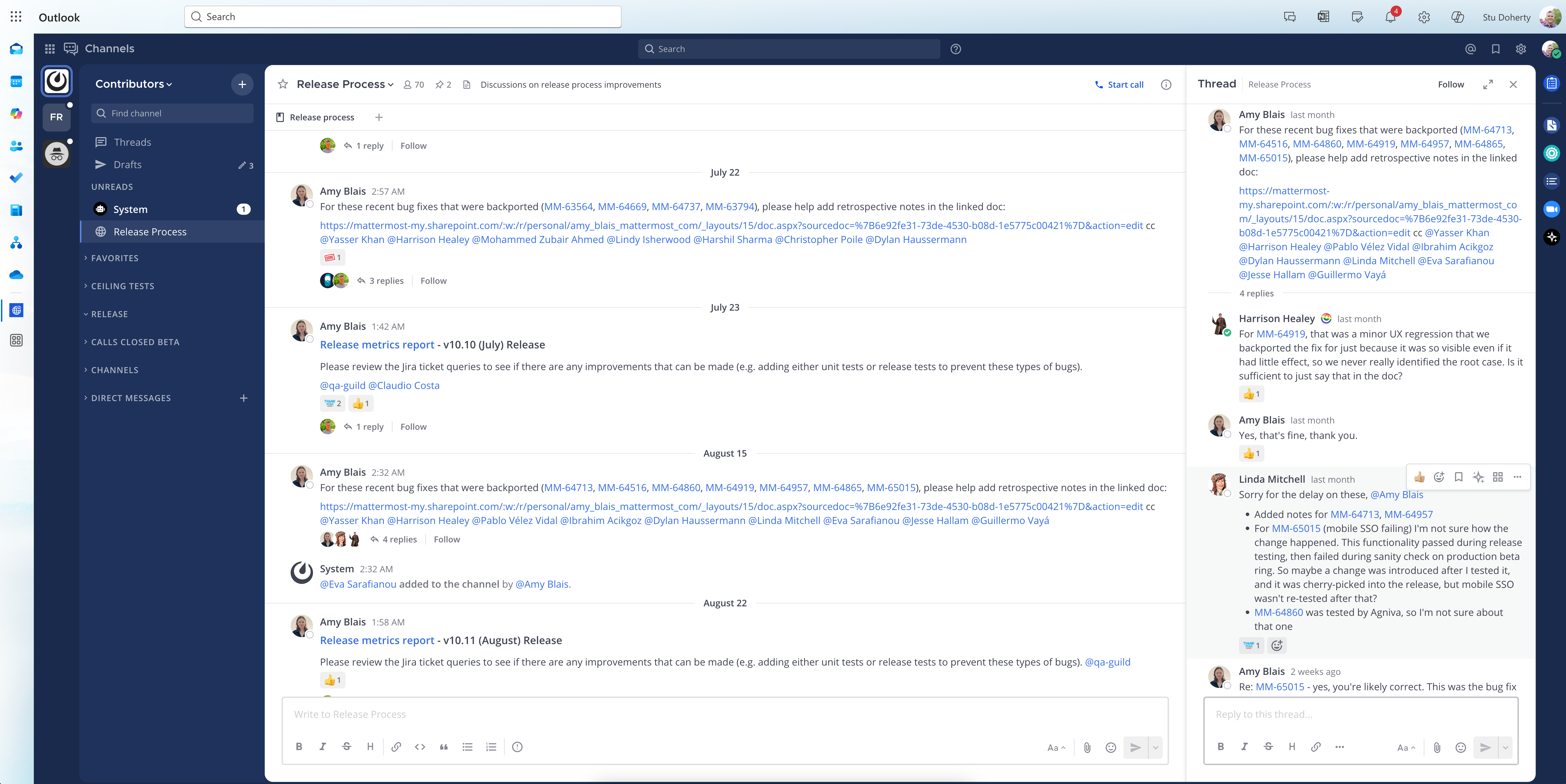
When you’re mentioned in Mattermost while working in Microsoft Teams, you’ll receive notifications directly in your Teams Activity Feed. This keeps you connected to important Mattermost conversations without switching applications.
What triggers notifications:
Direct mentions using @username
Channel-wide mentions using @channel, @all, or @here
Direct messages sent to you
How it works:
When someone mentions you in Mattermost, a notification appears in your Microsoft Teams Activity Feed. Select the notification to open Mattermost and view the full context of the message. This feature uses the TeamsActivity.Send permission configured during the Azure app registration setup.
Disable notifications:
System admins can disable Activity Feed notifications for specific users or across your organization by configuring the disable_user_activity_notifications setting in the plugin configuration. This setting is useful if you want to reduce notification noise or if users prefer to check Mattermost manually.
Note
Activity Feed notifications require the TeamsActivity.Send application permission to be configured in Azure (step 6 of the Register an MS Teams app in Azure section).
Get Help
Customers with a Mattermost subscription can open a Mattermost support case.
For questions, feedback, and assistance, join our pubic Integrations and Apps channel on the Mattermost Community Server for assistance.