 Mattermost v11.0 is now available! Learn what's new »


Work with tasks
Tasks and due dates
In some workflows, there are time constraints on tasks and others may have more flexible timeframes. Associating tasks with deliverable dates provides visibility into workloads and helps everyone stay accountable during the run.
To assign a due date to a task, select the Toggle Run Details icon to open the Run Details screen. Hover over the task you’d like to edit and select the calendar icon to assign a due date. Due dates can be used to sort tasks in the run overview.
When a due date is assigned to a task, and the task is overdue or due today, a reminder is added to the playbook’s daily digest along with tasks that don’t have an assigned due date. As tasks are completed, they’re removed from the daily digest reminders. You can refresh the list of assigned tasks at any time using the /playbook todo slash command.
Due dates can be entered in text (e.g., “two minutes ago”) or numerically (e.g., “15 March 2023”).
Task actions
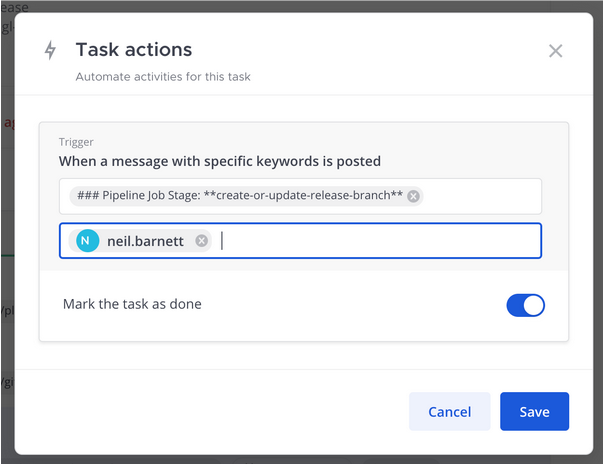
You can automatically complete tasks in a playbook run using keyword triggers. When the keywords you’ve entered are mentioned in the run, the task is marked as completed.
For this feature, you should use a string of text rather than individual words. The search is an ANY search, meaning that if you used the individual words “target” and “completed”, either of those words will trigger the action to be marked as complete. If you’re using phrases that have formatting, make sure you use the Markdown formatting in the text field.
When you edit a task, you’ll see the following:
The text to search for in the messages
Ability to limit this for posts from a specific user (or bot)
Option to mark the task as done (or not).
Conditional tasks
 Available on Entry, Enterprise, and Enterprise Advanced plans (not available on Professional)
From Mattermost v11.1, using Mattermost in a web browser or the desktop app, tasks can be conditionally included in playbooks based on attribute values or runtime conditions. This enables adaptive workflows where tasks are only presented when they’re relevant to the current context. For example:
Security incidents: Include additional forensic tasks for incidents classified as security-related.
Customer tier workflows: Show different approval processes based on customer subscription level.
Geographic operations: Include region-specific compliance tasks based on the location property.
Skill-based assignments: Automatically assign tasks to team members based on areas of expertise.
Configure conditional logic
To set up conditional behavior in a playbook:
Go to Product
 icon and select Playbooks.
Select the playbook or run you want to add conditions to.
Select the Outline tab.
Under Tasks, identify a task you want to make conditional.
From the More
 icon next to the task, select Add condition.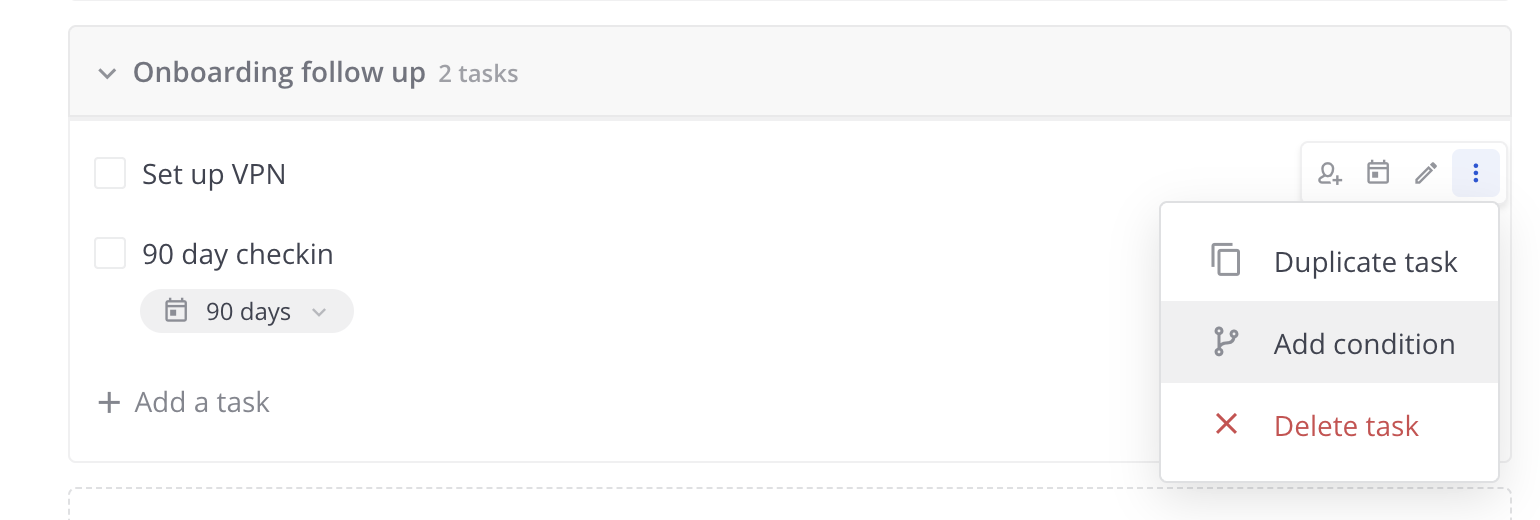
Select an attribute, condition, and value to define when the task should be included. Then select Done editing.
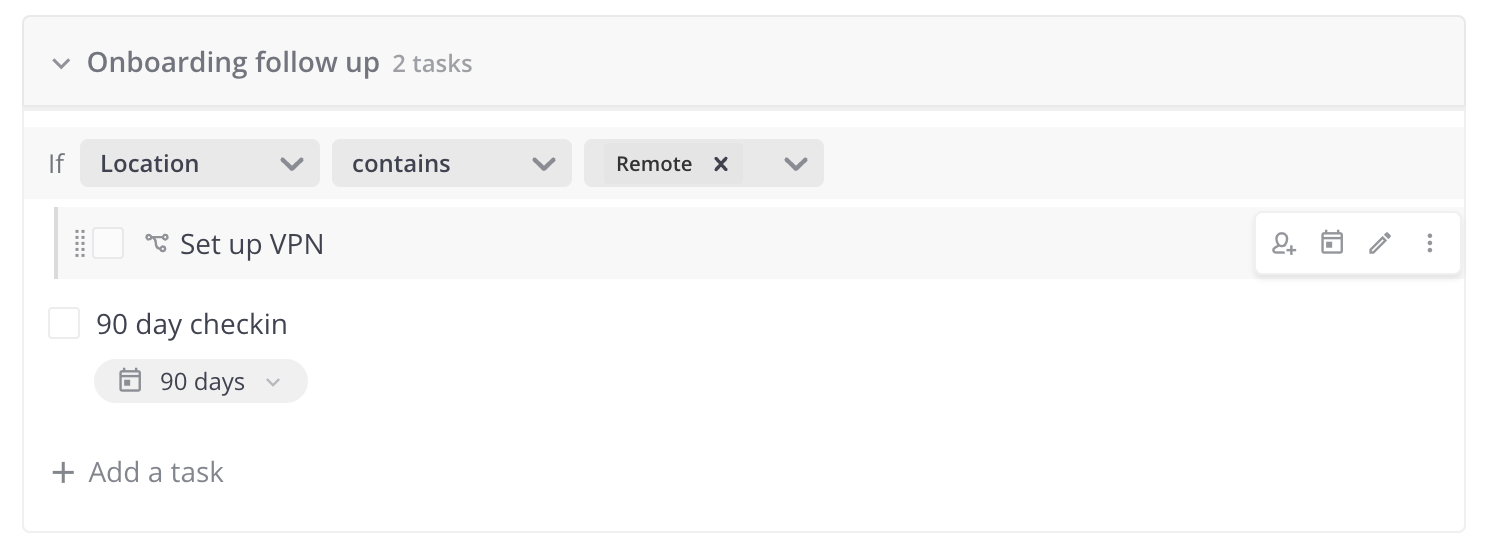
Conditional tasks are evaluated and automatically added to or removed from the checklist based on defined conditions. This reduces cognitive load by showing only relevant tasks and ensures that critical steps aren’t overlooked in different scenarios.
Tip
You can add up to 2 conditions per task to create an either/or condition.
Task inbox
In addition to the daily digest, you also have access to a task inbox. The task inbox provides you with a cross-run overview of the tasks you’re accountable for, sorted by due date.
You can:
Access each task directly, without having to visit the individual runs.
Mark tasks as complete or skip them.
Change the task assignee from yourself to another team member. The task will then be removed from your inbox.
You can change the due date of tasks to manage priorities and urgency.
To view your task inbox, access the Playbooks tab in Mattermost. In the header, next to your profile image, select the tasks list icon. A list of every task assigned to you from every run that’s in progress is displayed.
Mobile playbooks task management
From Mattermost v11.0 and mobile v2.32.0, mobile users can perform the following task management operations on playbook runs:
Interact with playbook tasks
Task interaction: Tap on any task to open a detailed bottom sheet view with task options and information.
Check/Uncheck tasks: Complete or reopen tasks directly from the Mattermost mobile app.
Skip/Unskip tasks: Mark tasks as skipped or return them to active status as workflow requirements change.
Update tasks
Update assignee: Change who is responsible for completing a task directly from the mobile app.
Modify due dates: Adjust task deadlines to accommodate changing priorities and schedules.
Edit task commands: Update slash commands or instructions associated with tasks.
Change run ownership: Transfer run ownership between team members.
Rename tasks: Update a task’s name to reflect evolving scope or priorities. (From Mattermost mobile v2.38.0)
Add or edit task descriptions: Add context to a task or update an existing description. (From Mattermost mobile v2.38.0)
Delete a task: This action cannot be undone. (From Mattermost mobile v2.37.0)
These mobile capabilities provide full task management functionality for teams working with playbooks while on mobile devices, complementing your existing desktop and web browser experiences.